On the controller
Smart Controllers
Some of our apps run directly on your DJI smart controller — no phone or tablet needed. The controller is the app. Here is what each controller can do and which drones it works with.
Full app on the controller
DJI RC 2
This is the recommended way to fly with the DJI RC 2 — the dedicated app runs directly on the controller, no phone or tablet needed.
11 drone models
Recommended app
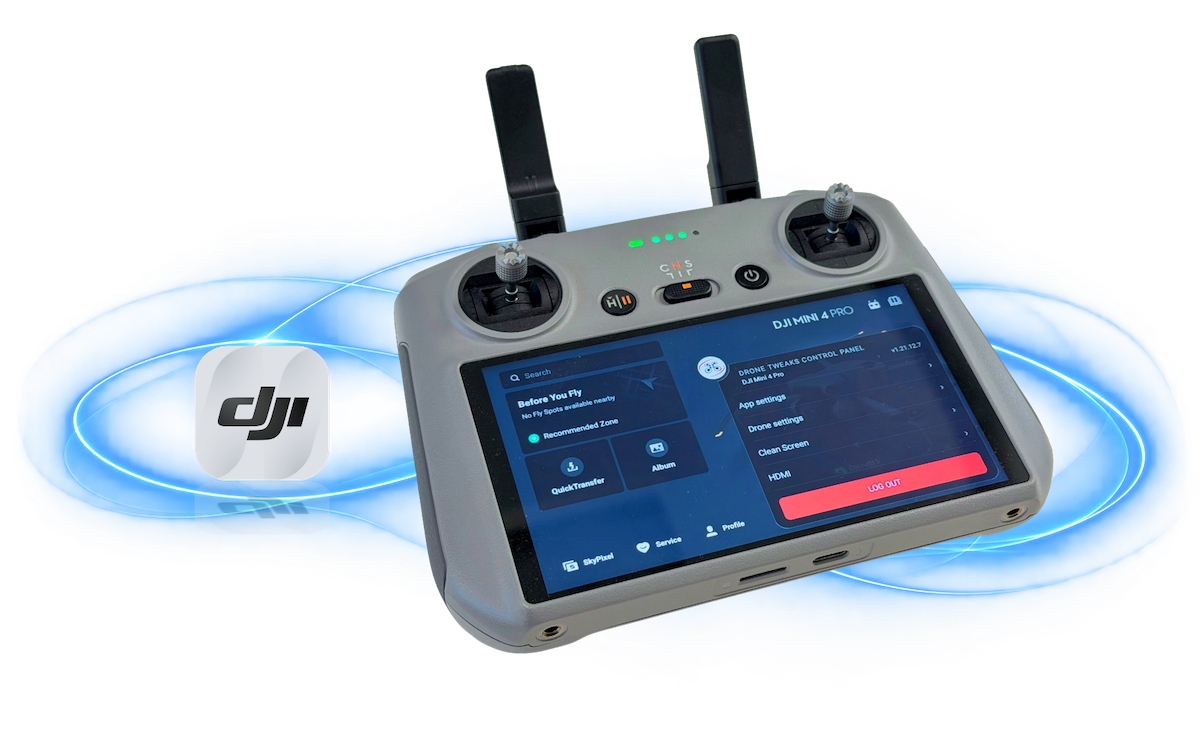
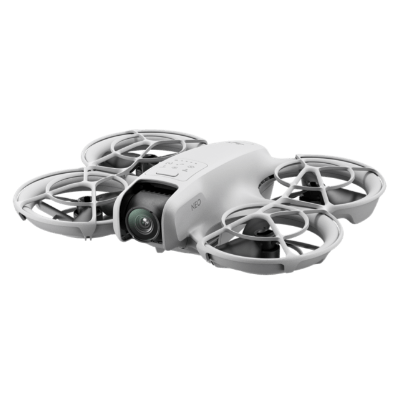
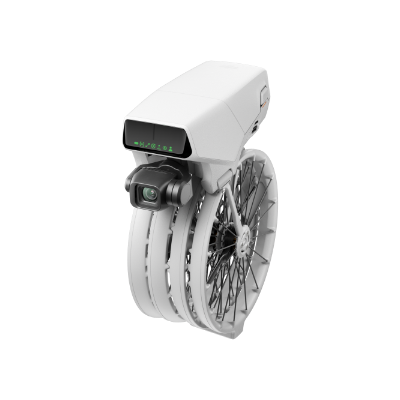
Full app on the controller
DJI RC Pro & RC Pro 2
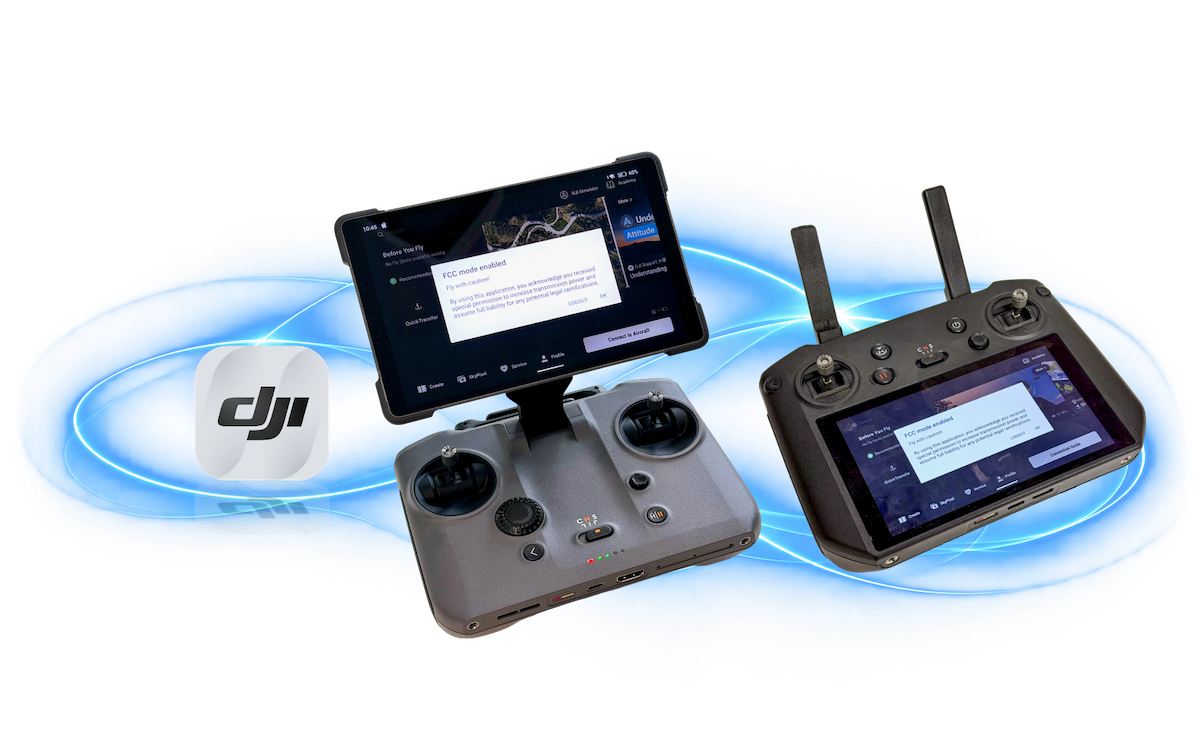
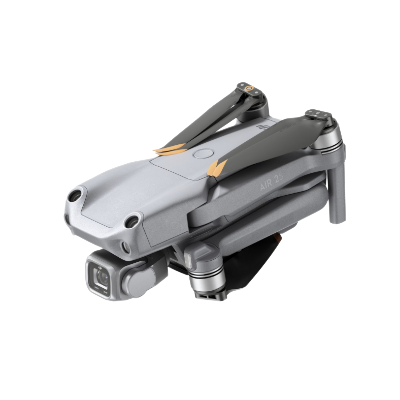
This is the recommended way to fly with the RC Pro and RC Pro 2 — the dedicated app runs directly on the controller, no phone or tablet needed.
11 drone models
Recommended app
Phone app via QuickTransfer
QuickTransfer-capable drones
QuickTransfer is the fallback, not the recommended setup. The only real reason to use it is if you want to keep flying on the same license you already use with another standard controller — but understand that you give up many of the features the dedicated apps offer.
12 drone models
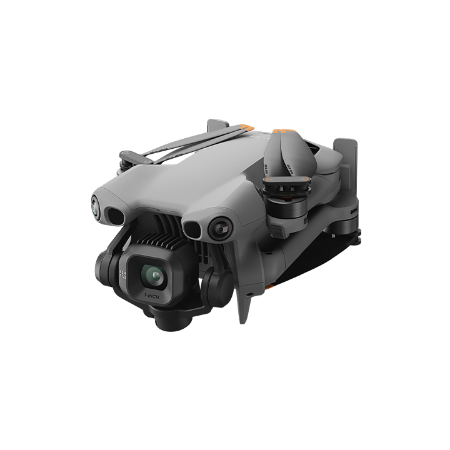
DJI Mini 5 Pro
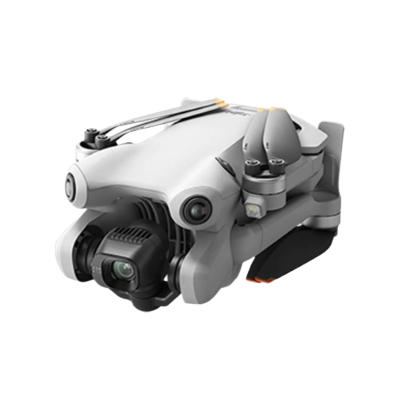
DJI Mini 4 Pro
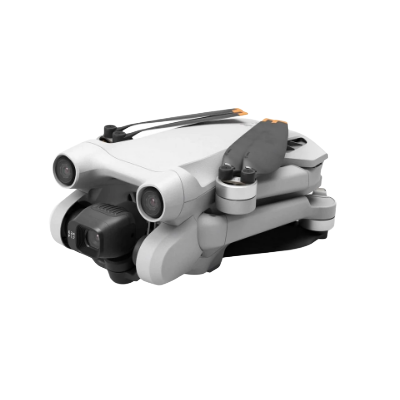
DJI Mini 3 Pro
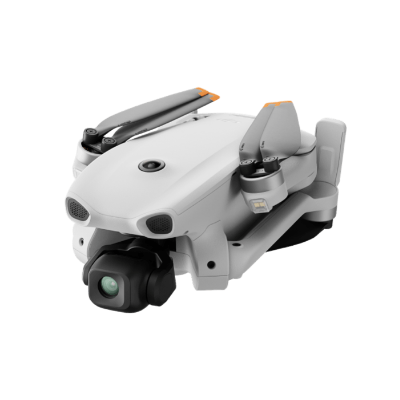
DJI Lito
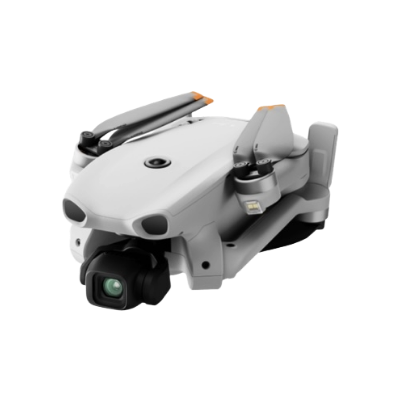
DJI Lito X1
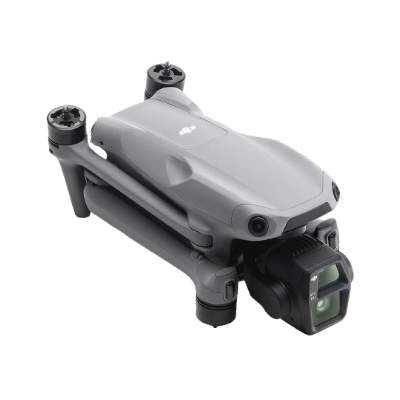
DJI Air 3S
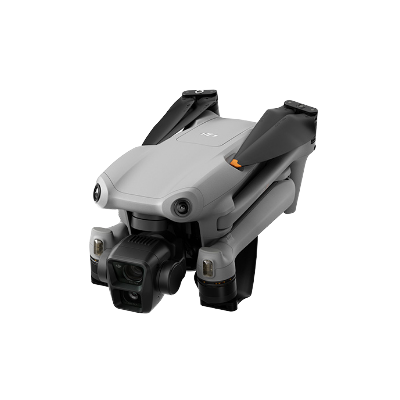
DJI Air 3
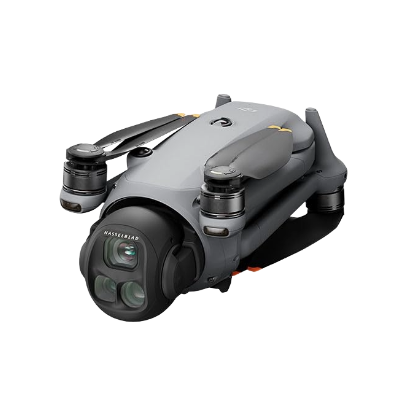
DJI Mavic 4 Pro
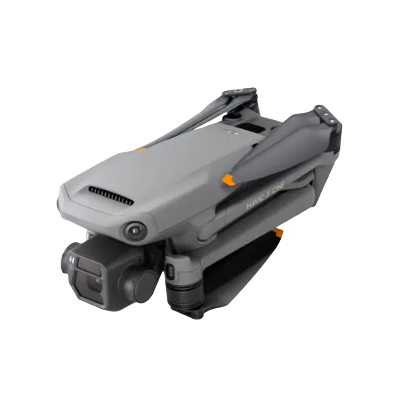
DJI Mavic 3
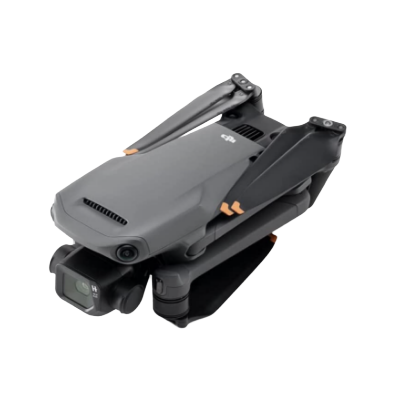
DJI Mavic 3 Classic
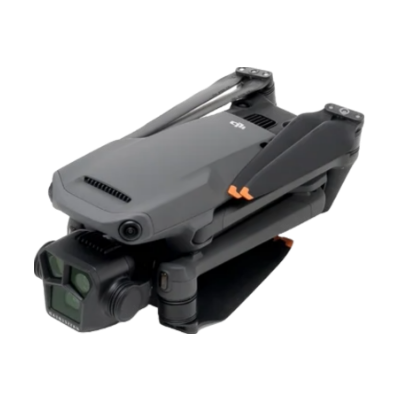
DJI Mavic 3 Pro
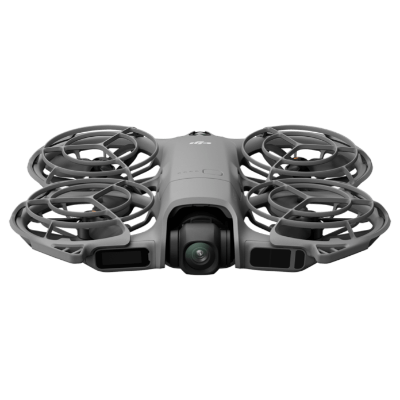
DJI Neo 2
QuickTransfer runs on the same app you use to fly with a standard controller — it's one license, not a separate one.
Before you fly
Unlike the dedicated apps that run directly on the controller, QuickTransfer has a few things to keep in mind:
- The transfer itself takes about 15 seconds, but it has to be done before every flight.
- Restarting the drone or the controller puts the mode back to CE.
- Completely losing signal between drone and controller — no video, no telemetry, the image goes black and white — also puts the mode back to CE.
- 1Launch the Drone Tweaks app and keep it running in the background.
- 2Start the drone and the smart controller, then wait for the drone to acquire GPS and update its home point.
- 3Launch the official DJI Fly app.
- 4Connect to the drone via QuickTransfer.
- 5Once the drone is connected, close the official DJI Fly app completely — don't just send it to the background.
- 6Open the Drone Tweaks app and wait for it to show that it's connected to the drone.
- 7Tap Exit Quick Transfer on the controller.
- 8Close the phone and enjoy flying with the smart controller in FCC.
Android
Video tutorial- 1Start the drone and the smart controller, then wait for the drone to acquire GPS and update its home point.
- 2Launch the Drone Tweaks app.
- 3Connect to the drone via QuickTransfer.
- 4Once connected, tap Exit Quick Transfer on the smart controller.
- 5Close the phone and enjoy flying with the smart controller in FCC.
Not sure which setup is yours?
Open your drone's page and pick your controller — we'll show exactly what unlocks for your pairing.
Find your drone